Best ETL Tool for Oracle to ClickHouse (Migration + Comparison)

Overview
ClickHouse is an open-source column-oriented database management system. Its performance in real-time data processing can significantly enhance analytics and business insights. Moving data from Oracle to ClickHouse can unlock fast OLAP queries without changing your existing OLTP system.
If you're searching for the best data integration tool to move data from Oracle DB to ClickHouse, the right answer depends on whether you need a one-time migration, continuous sync (CDC), schema change handling, and how much operational burden you're willing to take on.
This guide includes:
- A practical Oracle to ClickHouse migration / ETL tool comparison (what to look for).
- A step-by-step tutorial to move data from Oracle to ClickHouse with BladePipe.
By default, BladePipe uses ReplacingMergeTree as the ClickHouse table engine. Key features include:
- Add
_signand_versionfields in ReplacingMergeTree table. - Support for DDL synchronization.
Oracle to ClickHouse Migration / ETL Tool Comparison (How to Choose)
If your query is "which is the best data integration tool to move data from Oracle DB to ClickHouse?", start with these decision points:
- One-time migration vs continuous sync (CDC): A one-time copy is simpler; continuous sync requires log-based change capture, ordering, and recovery.
- Deletes and updates correctness: ClickHouse is append-optimized; make sure your approach handles UPDATE/DELETE semantics safely at scale.
- Schema migration and DDL sync: Oracle schema changes are common in real systems; a production pipeline needs a plan for DDL.
- Operational burden: DIY stacks can work, but you’ll own retries, backpressure, alerting, and drift.
- Verification and reconciliation: You need a repeatable way to prove ClickHouse matches Oracle after initial load and during incremental sync.
If you want a quick best tool shortcut:
- Choose a managed/packaged data integration tool when you want faster time-to-value and less engineering/ops work.
- Choose a DIY stack when you need full control and can afford the engineering and maintenance cost.
If you want background on change-streaming patterns and reliability guarantees, see Change Data Capture (CDC) and CDC use cases.
Highlights
ReplacingMergeTree Optimization
In the early versions of BladePipe, when synchronizing data to ClickHouse's ReplacingMergeTree table, the following strategy was followed:
-
Insert and Update statements were converted into Insert statements.
-
Delete statements were separately processed using ALTER TABLE DELETE statements.
Though it was effective, the performance might be affected when there were a large number of Delete statements, leading to high latency.
In the latest version, BladePipe optimizes the synchronization logic, supporting _sign and _version fields in the ReplacingMergeTree table engine. All Insert, Update, and Delete statements are converted into Insert statements with version information.
Schema Migration
When migrating schemas from Oracle to ClickHouse, BladePipe uses ReplacingMergeTree as the table engine by default and automatically adds _sign and _version fields to the table:
CREATE TABLE console.worker_stats (
    `id` Int64,
    `gmt_create` DateTime,
    `worker_id` Int64,
    `cpu_stat` String,
    `mem_stat` String,
    `disk_stat` String,
    `_sign` UInt8 DEFAULT 0,
    `_version` UInt64 DEFAULT 0,
    INDEX `_version_minmax_idx` (`_version`) TYPE minmax GRANULARITY 1
) ENGINE = ReplacingMergeTree(`_version`, `_sign`) ORDER BY `id`
Data Writing
DML Conversion
During data writing, BladePipe adopts the following DML conversion strategy:
-
Insert statements in Source:
-- Insert new data, _sign value is set to 0
INSERT INTO <schema>.<table> (columns, _sign, _version) VALUES (..., 0, <new_version>); -
Update statements in Source (converted into two Insert statements):
-- Logically delete old data, _sign value is set to 1
INSERT INTO <schema>.<table> (columns, _sign, _version) VALUES (..., 1, <new_version>);

-- Insert new data, _sign value is set to 0
INSERT INTO <schema>.<table> (columns, _sign, _version) VALUES (..., 0, <new_version>); -
Delete statements in Source:
-- Logically delete old data, _sign value is set to 1
INSERT INTO <schema>.<table> (columns, _sign, _version) VALUES (..., 1, <new_version>);
Data Version
When writing data, BladePipe maintains version information for each table:
-
Version Initialization: During the first write, BladePipe retrieves the current table's latest version number by running:
SELECT MAX(`_version`) FROM `console`.`worker_stats`; -
Version Increment: Each time new data is written, BladePipe increments the version number based on the previously retrieved maximum version number, ensuring each write operation has a unique and incrementing version number.
To ensure data accuracy in queries, add the final keyword to filter out the rows that are not deleted :
SELECT `id`, `gmt_create`, `worker_id`, `cpu_stat`, `mem_stat`, `disk_stat`
FROM `console`.`worker_stats` final;
Procedure
Step 1: Install BladePipe
You can use BladePipe in three ways:
- SaaS (Fully Managed) – 90-day free trial. Just log in and start using it. See Quick Start (SaaS).
- BYOC (Bring Your Own Cloud) – 90-day free trial. Follow the instructions in Install Worker (Docker) or Install Worker (Binary) to download and install a BladePipe Worker.
- On-premise (Local Deployment) – Free community edition. Click Try Community Free on the homepage for one-click deployment. See Quick Start (On-premise).
Step 2: Add DataSources
- Log in to BladePipe:
- SaaS / BYOC: Log in to the BladePipe Cloud.
- On-premise: Open
http://${ip}:8111in your browser.
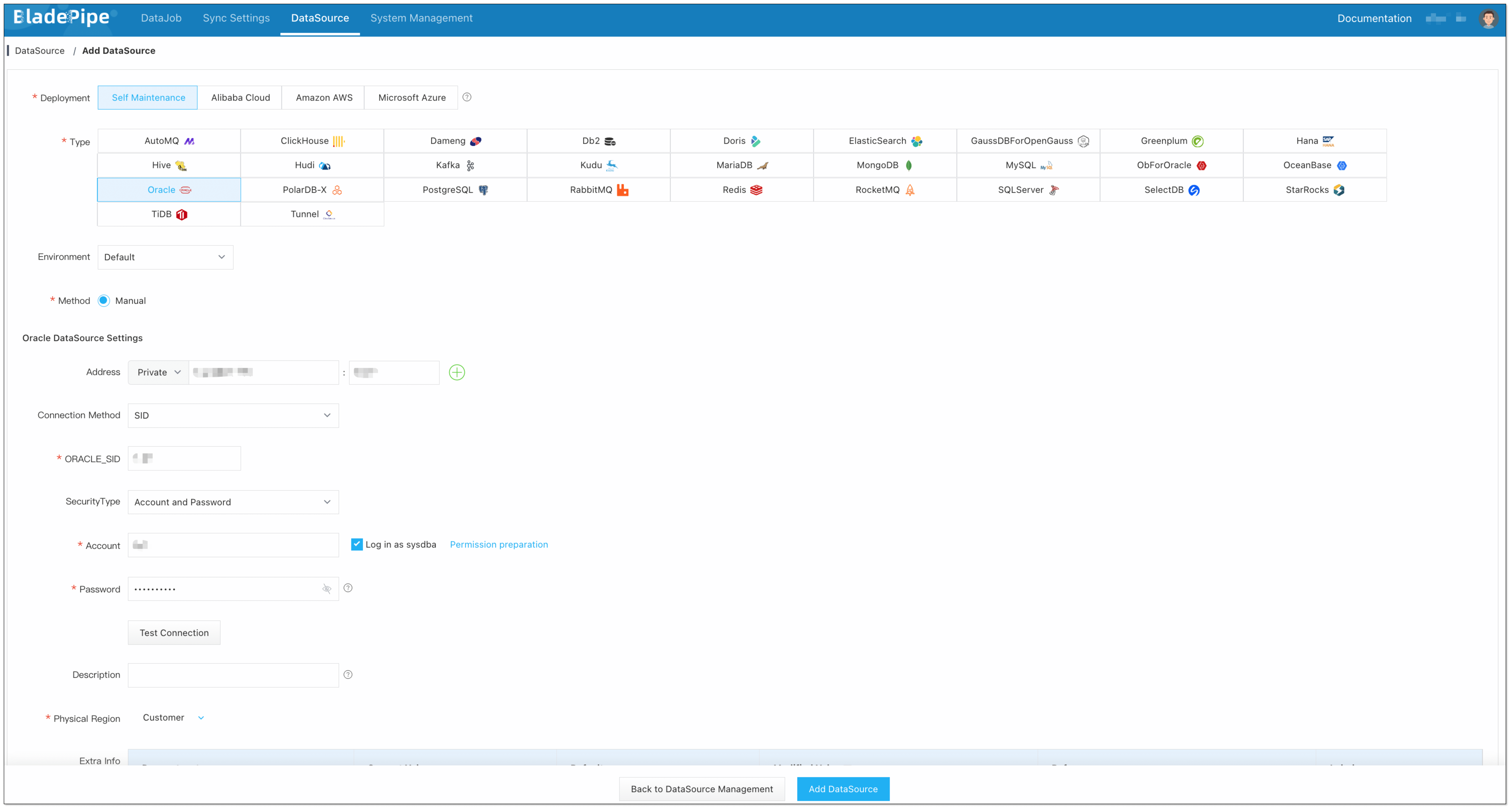
- Click DataSource > Add DataSource.
- Select the source and target DataSource type, and fill out the setup form respectively.
Step 3: Create a DataJob
-
Click DataJob > Create DataJob.
-
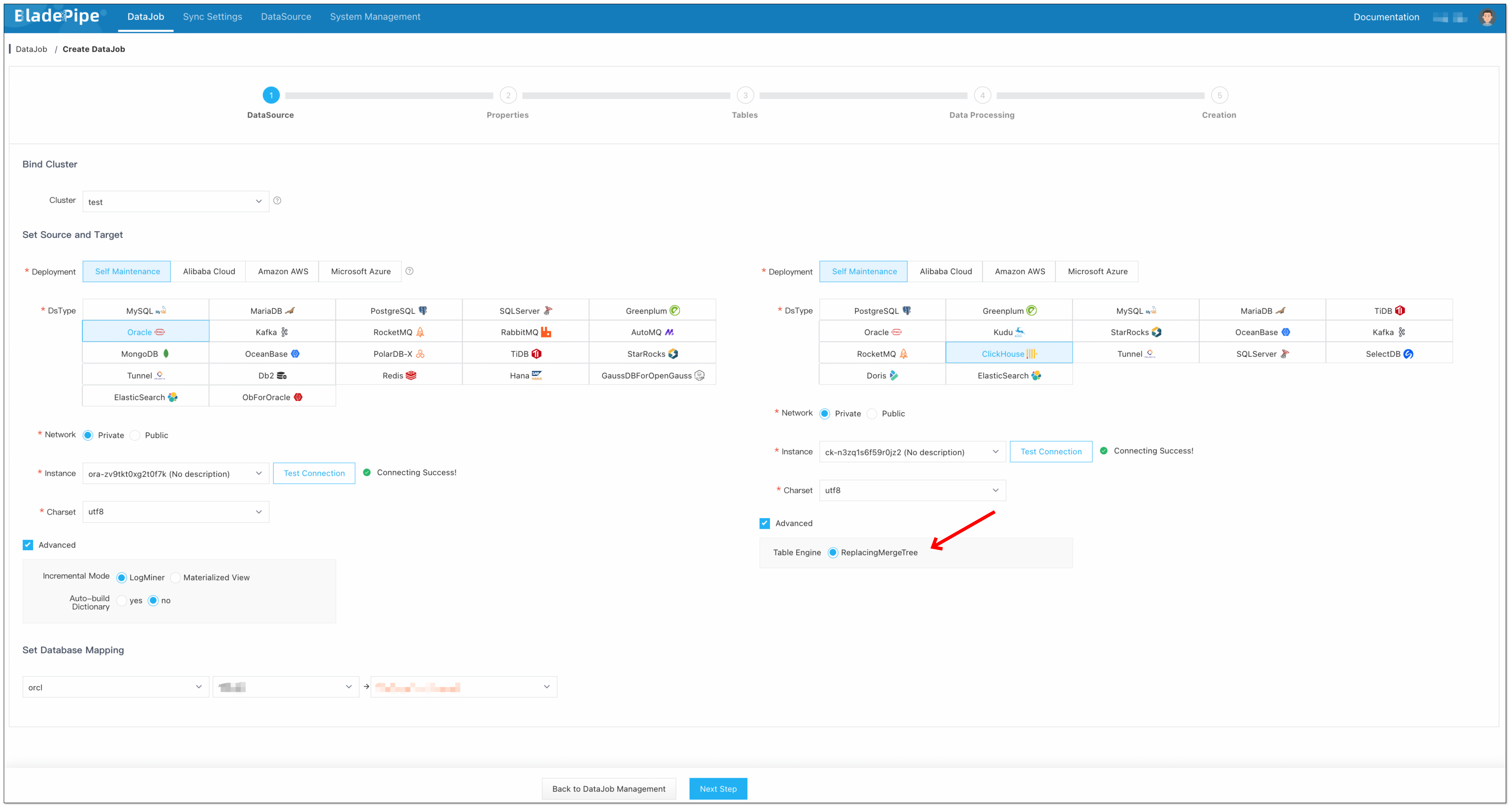
Select the source and target DataSources, and click Test Connection to ensure the connection to the source and target DataSources are both successful.
-
In the Advanced configuration of the target DataSource, choose the table engine as ReplacingMergeTree (or ReplicatedReplacingMergeTree).
-
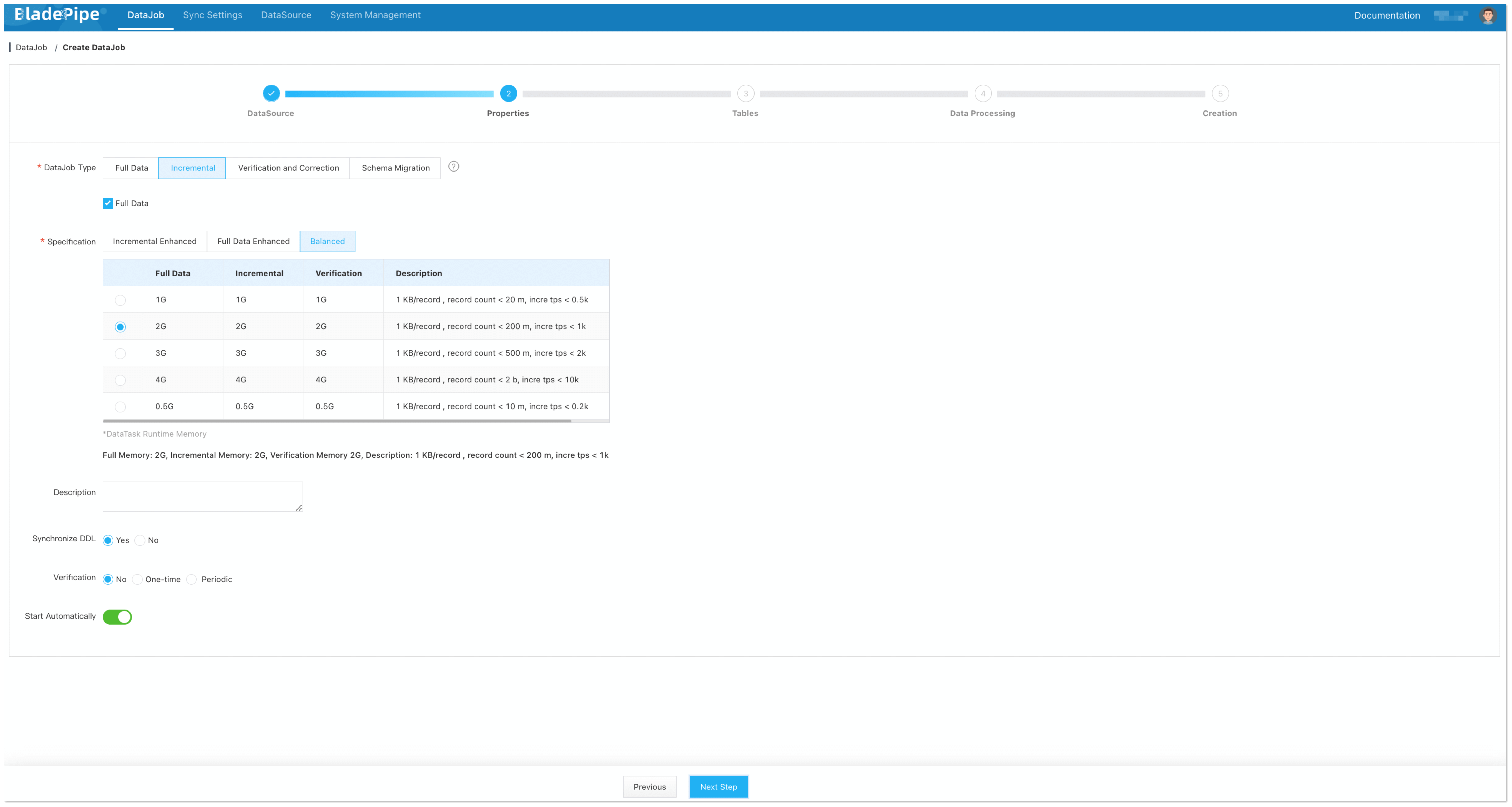
Select Incremental for DataJob Type, together with the Full Data option.
信息In the Specification settings, make sure that you select a specification of at least 1 GB.
Allocating too little memory may result in Out of Memory (OOM) errors during DataJob execution.
-
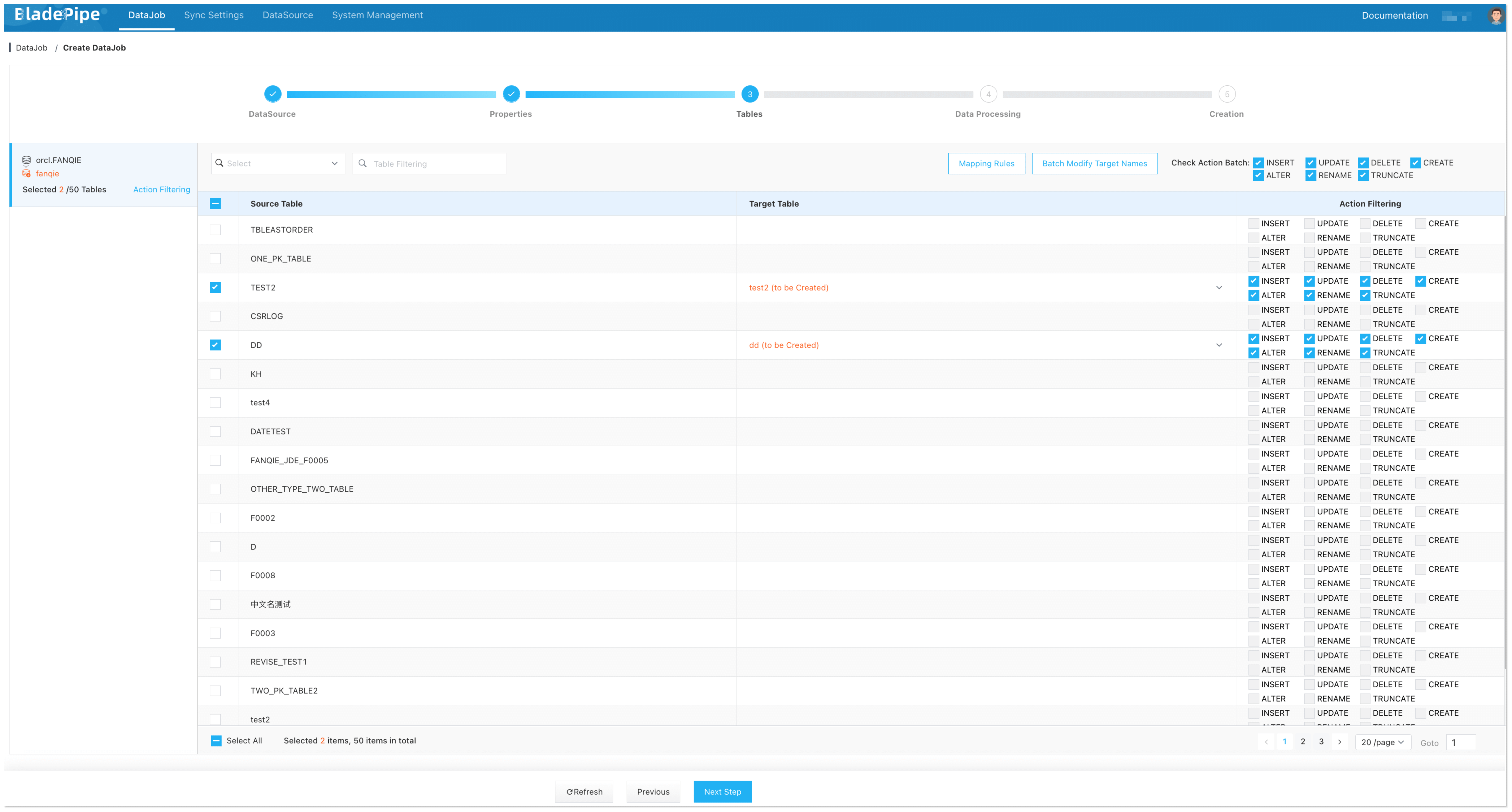
Select the tables to be replicated.
-
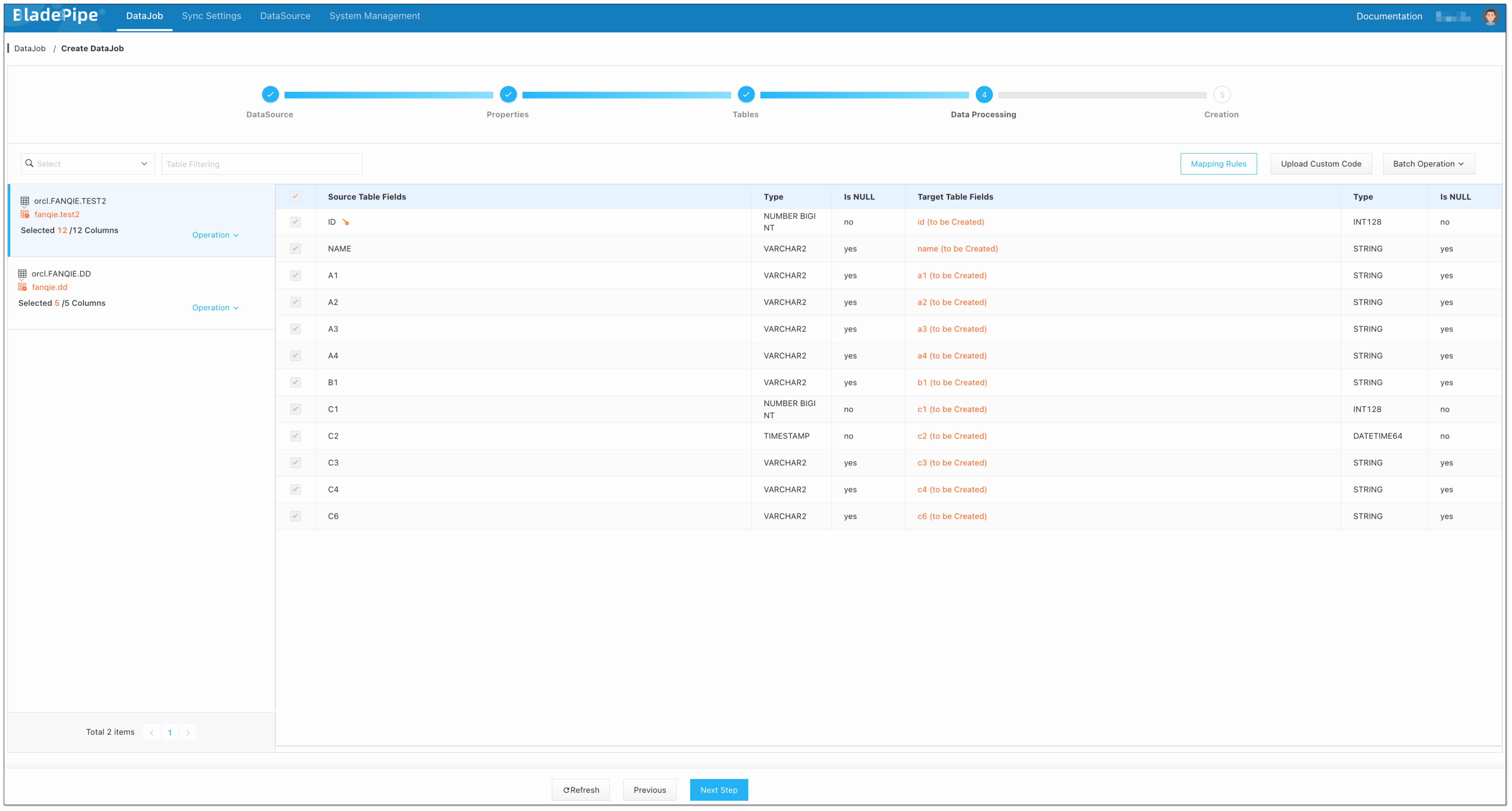
Select the columns to be replicated.
-
Confirm the DataJob creation.
-
Now the DataJob is created and started. BladePipe will automatically run the following DataTasks:
- Schema Migration: The schemas of the source tables will be migrated to ClickHouse.
- Full Data Migration: All existing data from the source tables will be fully migrated to ClickHouse.
- Incremental Synchronization: Ongoing data changes will be continuously synchronized to the target database.

Step 4: Verify the Data
-
Stop data write in the Source database and wait for ClickHouse to merge data.
信息It's hard to know when ClickHouse merges data automatically, so you can manually trigger a merging by running the
optimize table xxx finalcommand. Note that there is a chance that this manual merging may not always succeed.Alternatively, you can run the
create view xxx_v as select * from xxx finalcommand to create a view and perform queries on the view to ensure the data is fully merged. -
Create a Verification DataJob. Once the Verification DataJob is completed, review the results to confirm that the data in ClickHouse is the same as that in Oracle.

FAQs
Oracle to ClickHouse migration: what are the top 5 features to compare?
Compare these 5 must-have features for ETL or CDC tools:
- CDC sync: One-time or continuous real-time?
- UPDATE/DELETE: Safe mutation handling in ClickHouse?
- Schema evolution: Auto-handle DDL changes without breaking?
- Reliability: Retries, offset resume, backpressure?
- Verification: Built-in reconciliation to fix drift?
Which data integration tool is best for Oracle to ClickHouse?
It depends on your ops capacity. Pick a managed platform if you need fast setup + CDC + schema handling + verification (recommended for most teams). Pick DIY if you already run streaming infra (Kafka/Flink) and want full control.
Best ETL tool Oracle to ClickHouse: batch or real-time?
The deciding factor is latency need.
- Batch load = simpler, scheduled (hourly/daily).
- Real-time CDC = near real-time sync, requires UPDATE/DELETE handling.
Do I need CDC for a one-time Oracle to ClickHouse migration?
Not necessarily. For a one-time migration you can do a full load plus validation. If you also need to keep Oracle and ClickHouse in sync during a cutover (or long backfill), CDC becomes important.
How to avoid data drift in Oracle to ClickHouse pipelines?
Use this 3-step checklist:
- Preserve transaction order.
- Resume from offset after failures.
- Run periodic verification + alert on mismatches.
Can Oracle to ClickHouse tools support real-time data pipelines?
Yes. Tools like Bladepipe support: Full load (initial snapshot); Continuous incremental sync (CDC); Ops layer: monitoring, retries, verification