License
This topic describes how to activate your BladePipe On-Premise deployment using a valid license.
Terminology
- Apply Code: A unique code required to generate and retrieve your BladePipe On-Premise license.
- License: The authorization credential used to activate your BladePipe On-Premise deployment. It specifies the validity period and the number of authorized links for your data integration tasks.
Install BladePipe On-Premise
-
Log in to BladePipe.
-
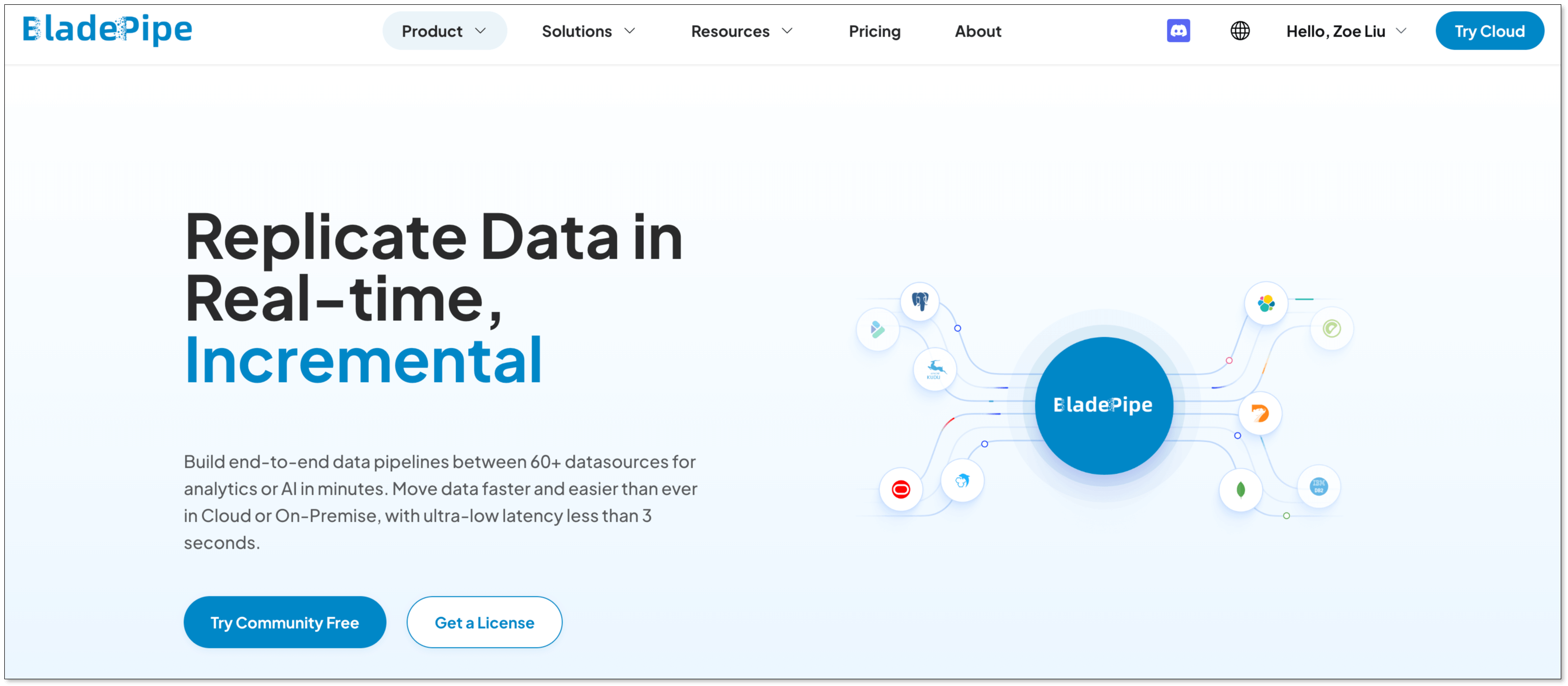
Click Try Community Free and install BladePipe by following the instructions in Install All-In-One (Docker).
Get Your Apply Code
-
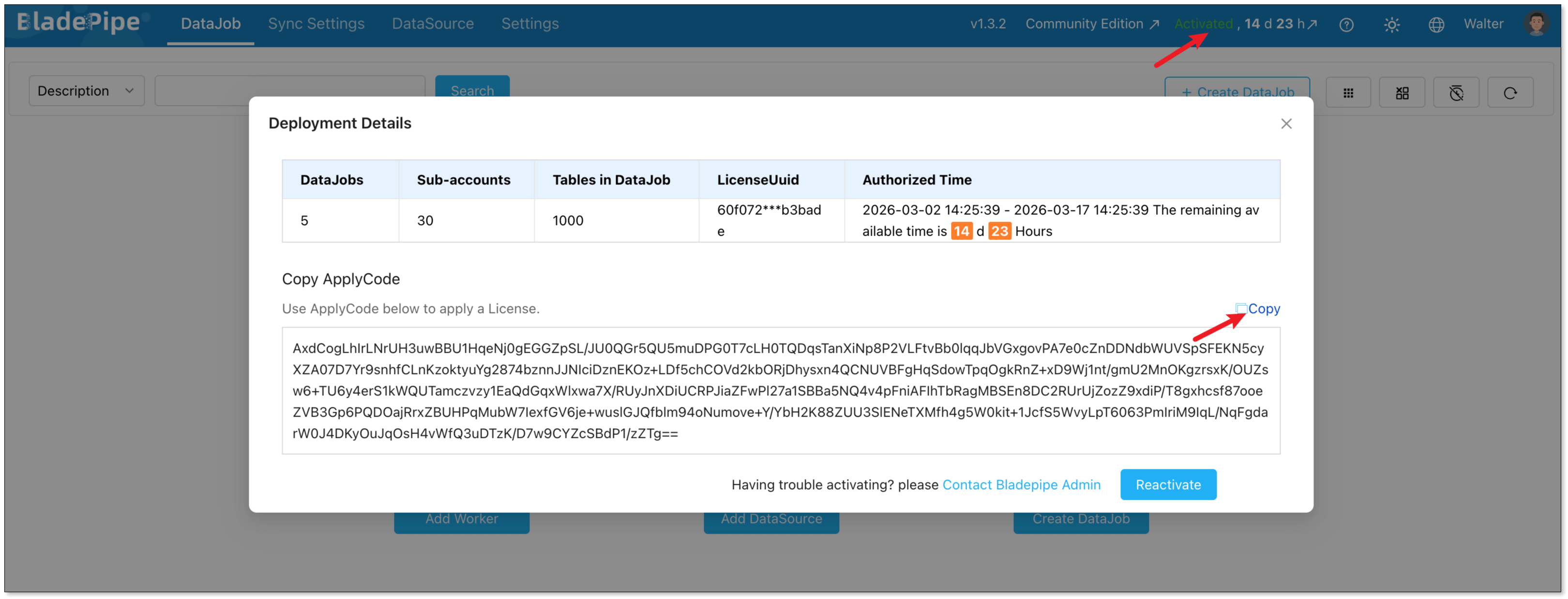
Log in to your BladePipe Console and click the Inactivated/Activated status.
-
In the Deployment Details dialog, locate your Apply Code and click Copy.
Get a License
Log in to BladePipe and click Get a License.
For On-Premise deployments, BladePipe provides Community, Enterprise Trial, and Enterprise plans. Follow these steps to obtain the license for your deployment.
- Community/Trial License
- Enterprise License
-
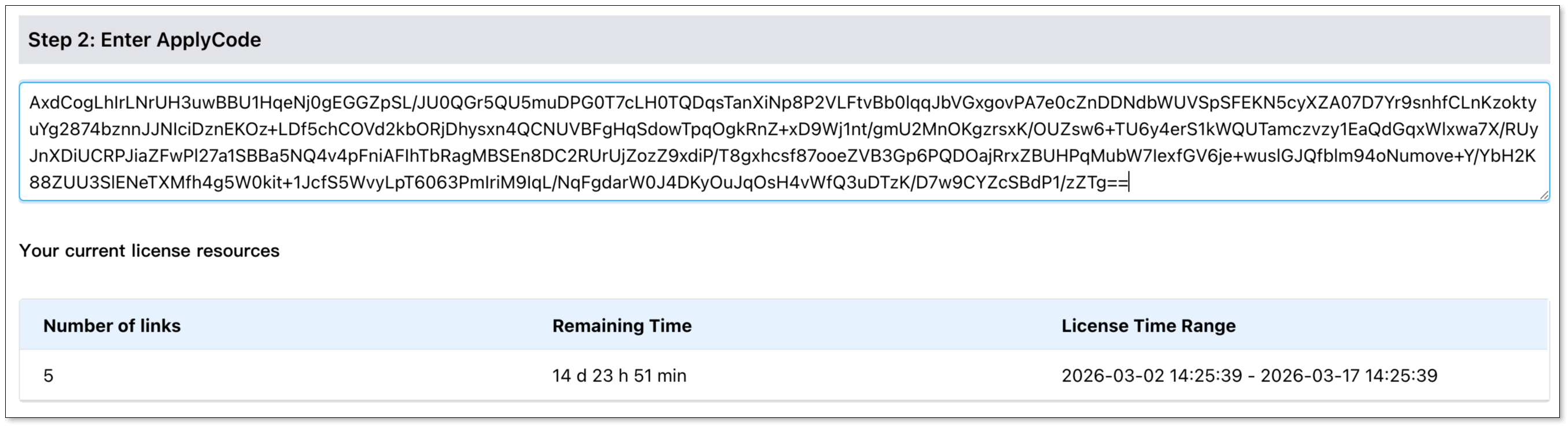
In Step 2, paste your Apply Code into the box.
-
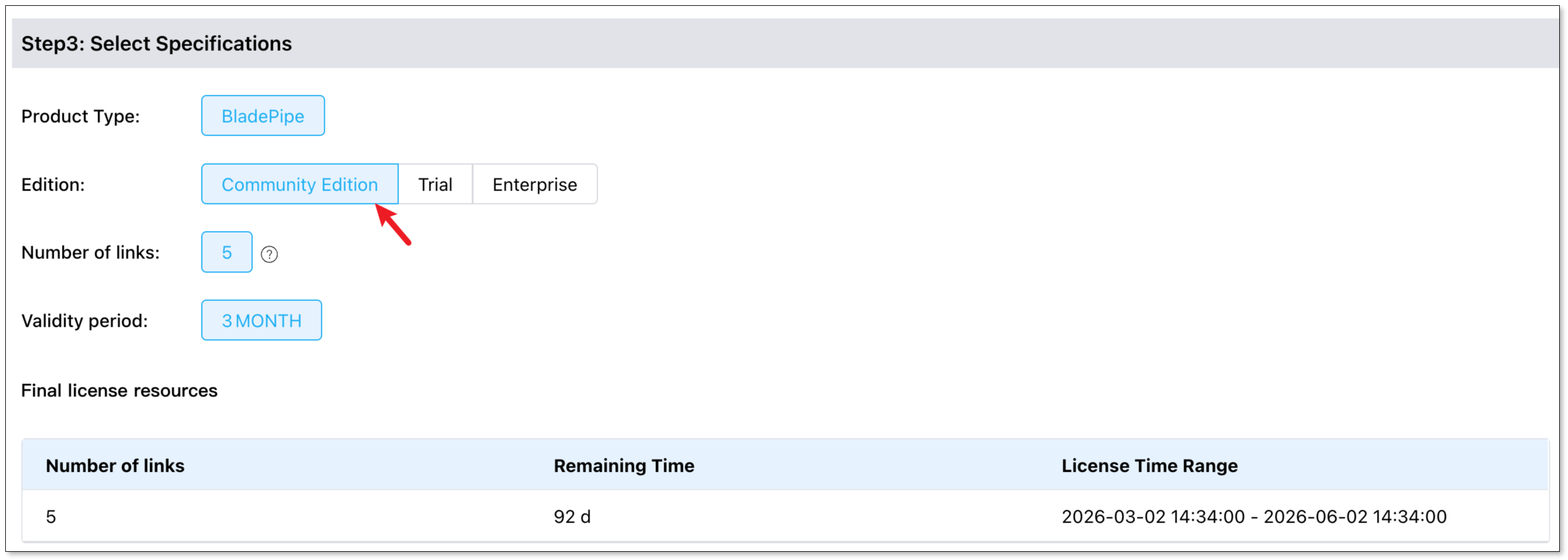
In Step 3, select Community Edition / Trial.
-
Click Proceed to Payment.
-
In the License list, click View to check the license.
-
In the View the License dialog, click Get Email Code and enter the verification code.
-
Once verified, the license is sent to your account email. Check your inbox to get it.
infoIf the email does not arrive, check your spam folder first. If your account email is wrong, click Update email in the dialog, verify the new mailbox, and request the license again.
-
In Step 2, paste your Apply Code into the box.
-
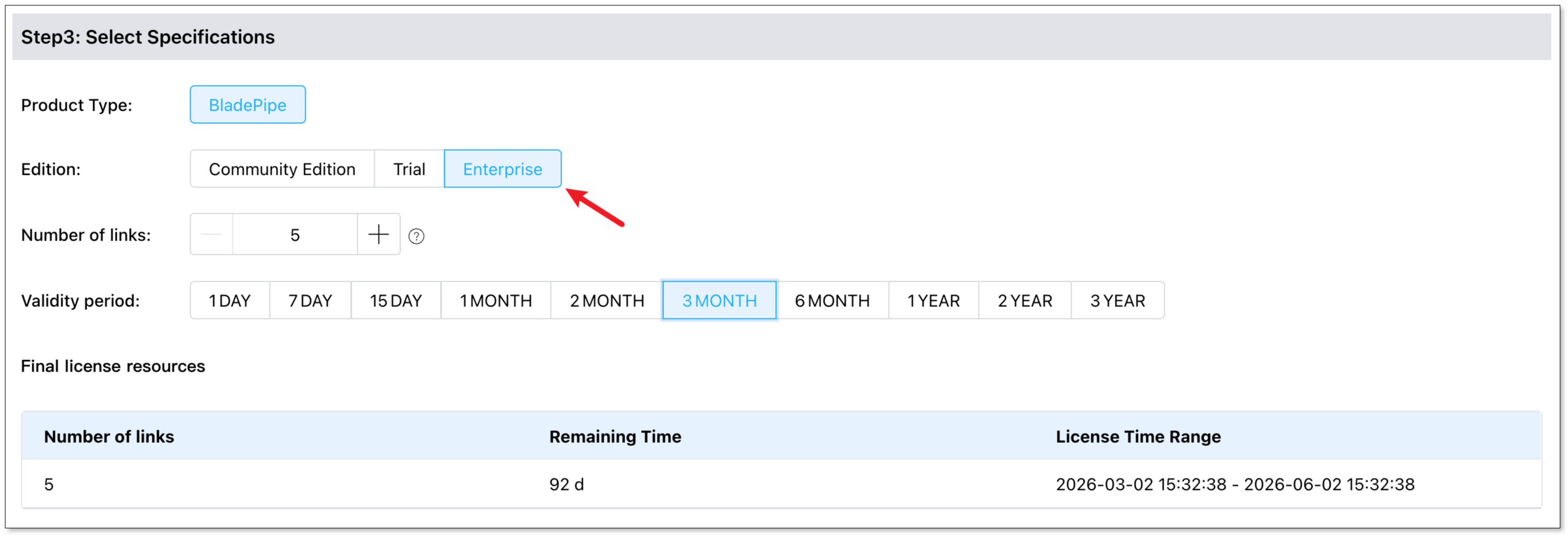
In Step 3, select Enterprise Edition. Configure the desired number of links and the validity period. For details, see Pricing.
-
Click Proceed to Payment.
-
In the License list, click View to check the license.
-
In the View the License dialog, click Get Email Code and enter the verification code.
-
Once verified, the license is sent to your account email. Check your inbox to get it.
infoIf the email does not arrive, check your spam folder first. If your account email is wrong, click Update email in the dialog, verify the new mailbox, and request the license again.
Activate BladePipe
-
Copy the license from the email and return to your BladePipe Console.
-
In the Deployment Details dialog, paste your copied license into the Enter License box, and click Activate Now.
If your BladePipe deployment is already activated, click Reactivate to open the Enter License dialog.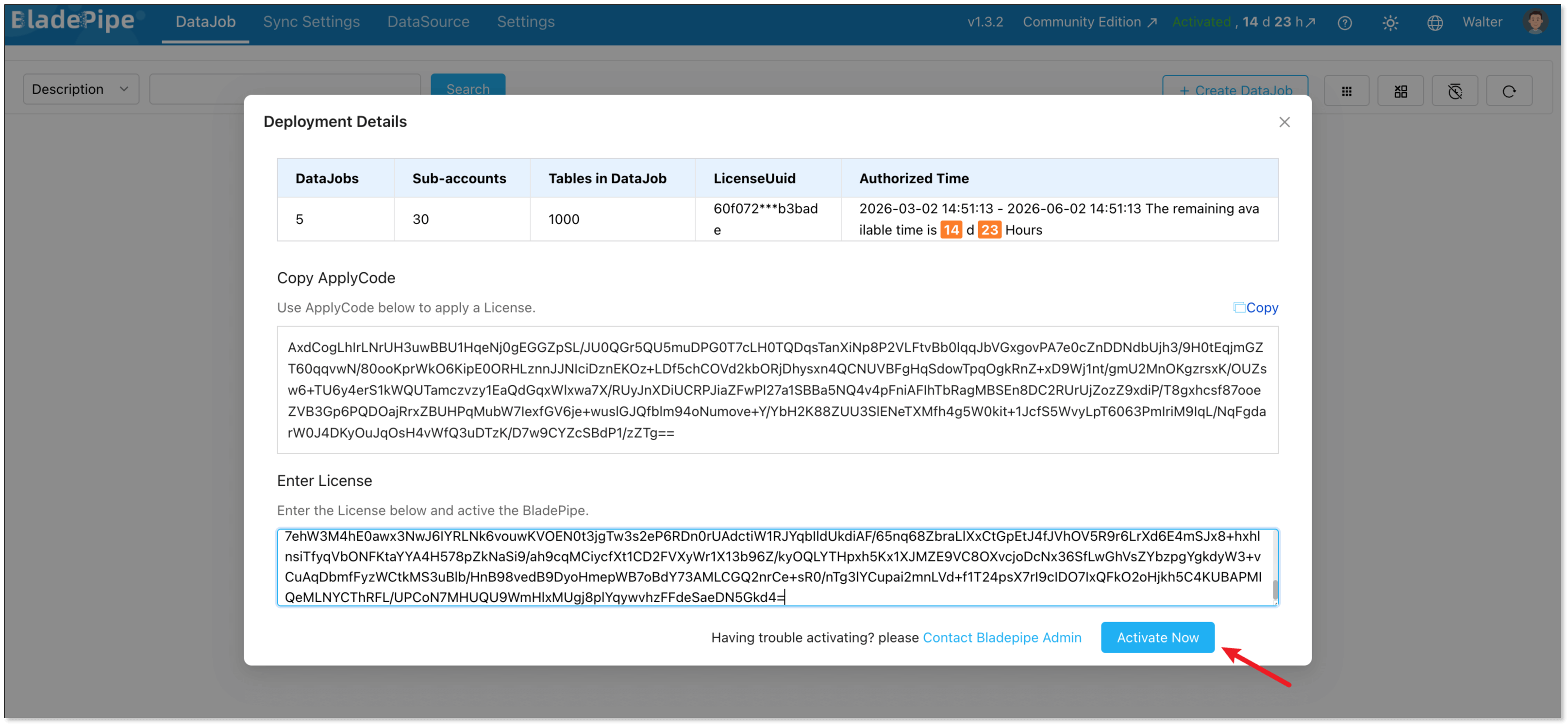 info
info- You can click the Activated status anytime to view the authorization details of your license.
- Renew your BladePipe Community Edition license before it expires to prevent interruptions to your active DataJobs.
- For a BladePipe Enterprise Edition license, contact support for renewal assistance or renew it directly through the BladePipe Console before the expiration date.